Edit: Alternative installation:
Run in CMD as admin from the installation folder. Manual installer found here: BT2021_R1_160168_Full_x64.exe
BT2021_R1_160168_Full_x64.exe FEATURE=BarTender INSTALLSQL=false BLS=PLN-VAMT:5160 PKC=2R-0CC4G-TKKW4-ZQBF
- Run the manual installer from above as the one in the Company Portal does not work. Vendor related issue with the installer.
- For Printer ask the user if using the Zebra or Datamax (Most should require the Zebra and the printer may already be installed)
Training and Support beyond EUS install: Geoff Emore
- Run the installer
- Click accept and specify advanced installation options
- Only leave Bartender checked
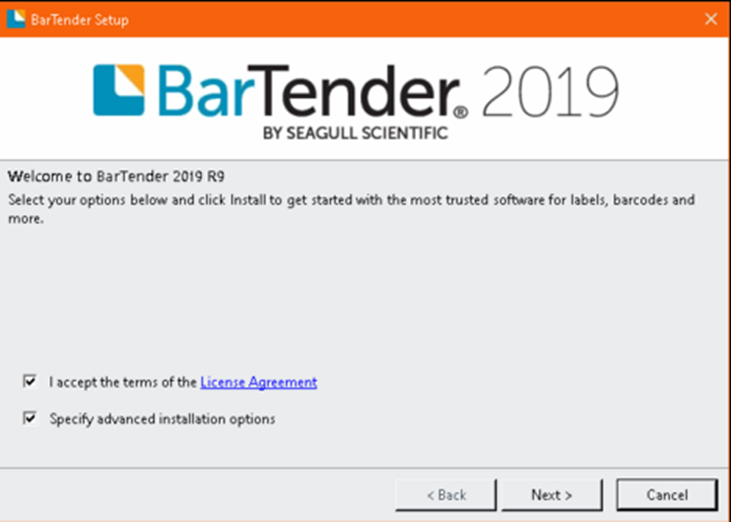
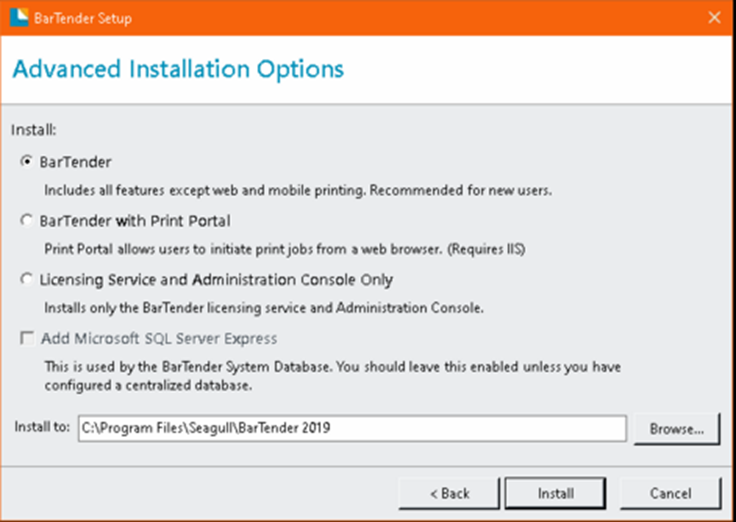
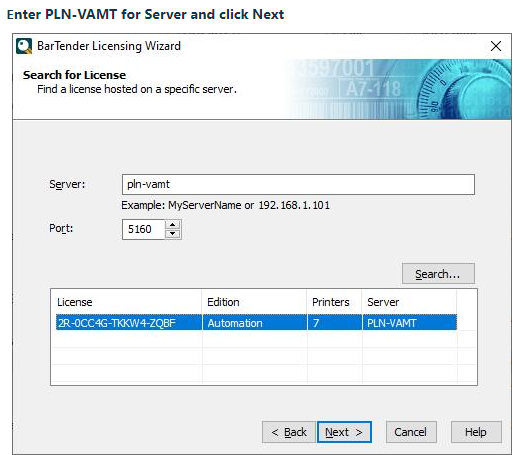
When Bartender opens…click on Search for existing license

Enter PLN-VAMT for Server and click Next


-----------------------------------------------------------------------------------------------------------------------
I had a user that ran into an error when printing with Bartender. I ended up re-activating the licenses again.
Ticket- https://pfgc.atlassian.net/browse/PFG-334167

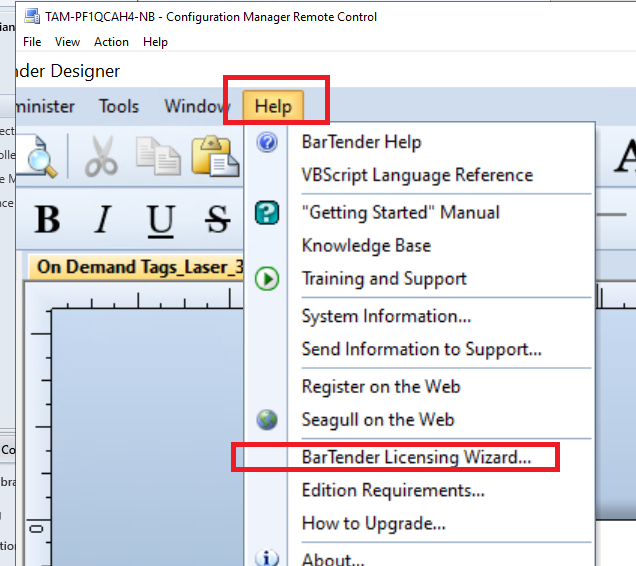
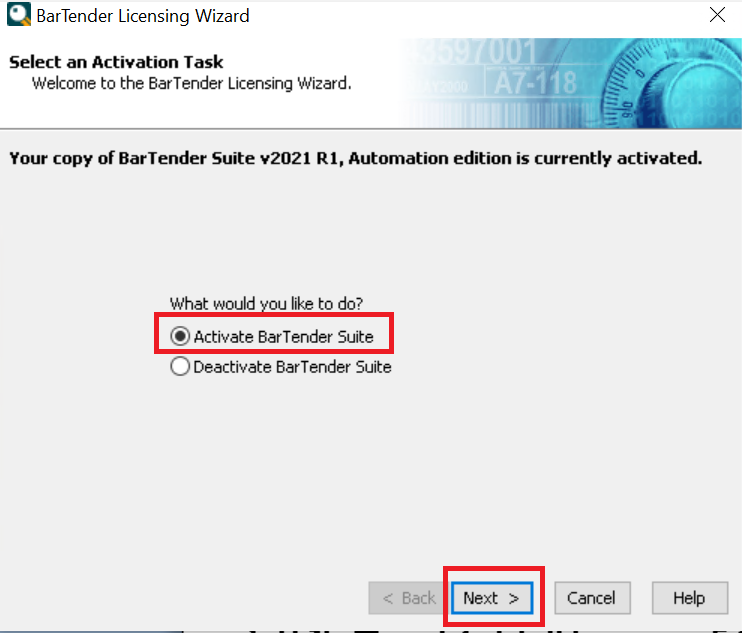
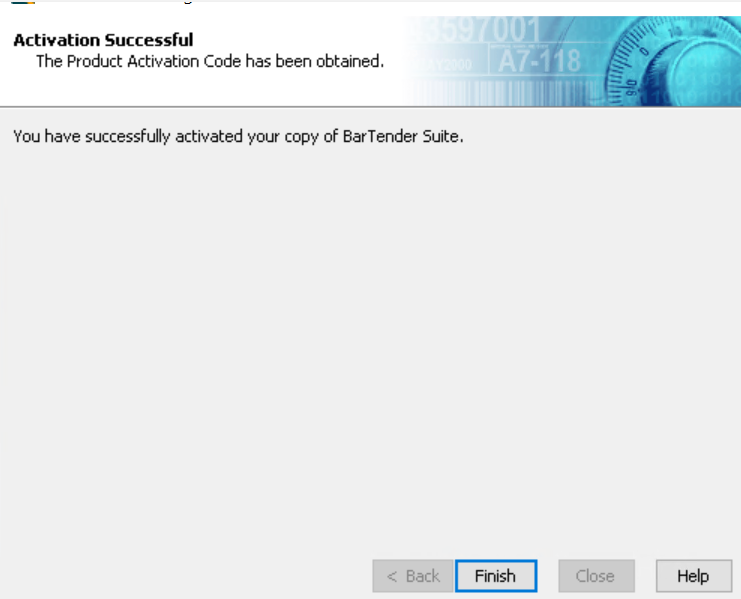
*** Rare issue with the BarTender Licensing server itself ***
If Nate Kachelmeyer is in the office he can assist. If not Oliver Cubacub.
Ticket for reference: [PFG-616189] Bartender License Issue: CRP-67HC494-NB - pfgc.atlassian.net and
[PFG-626326] Bartender Error Message #1403 - pfgc.atlassian.net
Need to use the Product Key Code: W1TD-6KBD-H177-Z9XK to reactivate the license: 2R-0CC4G-TKKW4-ZQBF
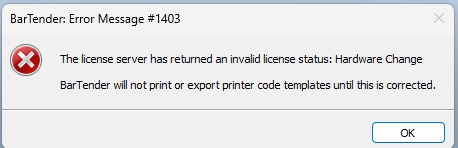
This error means BarTender has detected significant hardware changes, such as a new motherboard or Windows update, that have invalidated your license. To fix it, you can deactivate and reactivate the license through the BarTender Administration Console. If that doesn't work, you may need to restart the BarTender Licensing Service in Windows Services or repair/reinstall the application
Deactivate and reactivate the license
Open the BarTender Administration Console.
Navigate to Licensing > License Setup.
Click the gear icon and select Deactivate License, then follow the wizard. ** If wizard fails copy the web link and try in a browser.
Once deactivated, click Activate License at the top of the Licensing tab.
Enter your product key code and follow the prompts to reactivate your license. ** If wizard fails copy the web link and try in a browser.
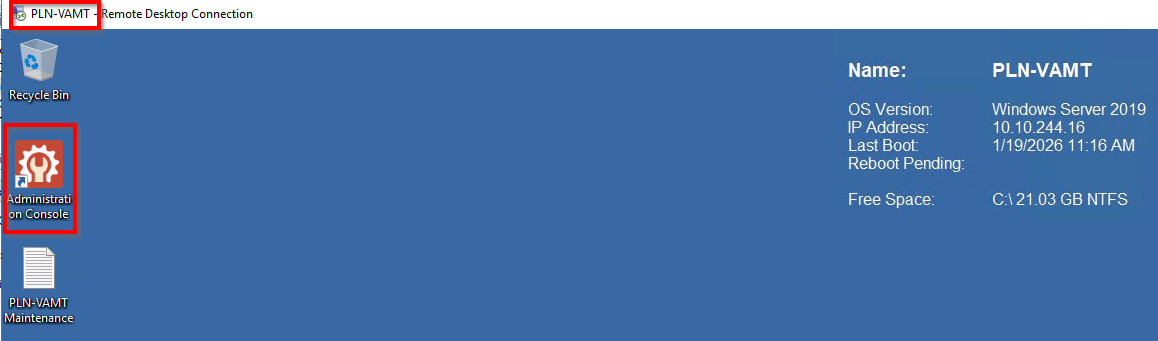
Login to the Bartender Server: PLN-VAMT and open the Administration Console app.
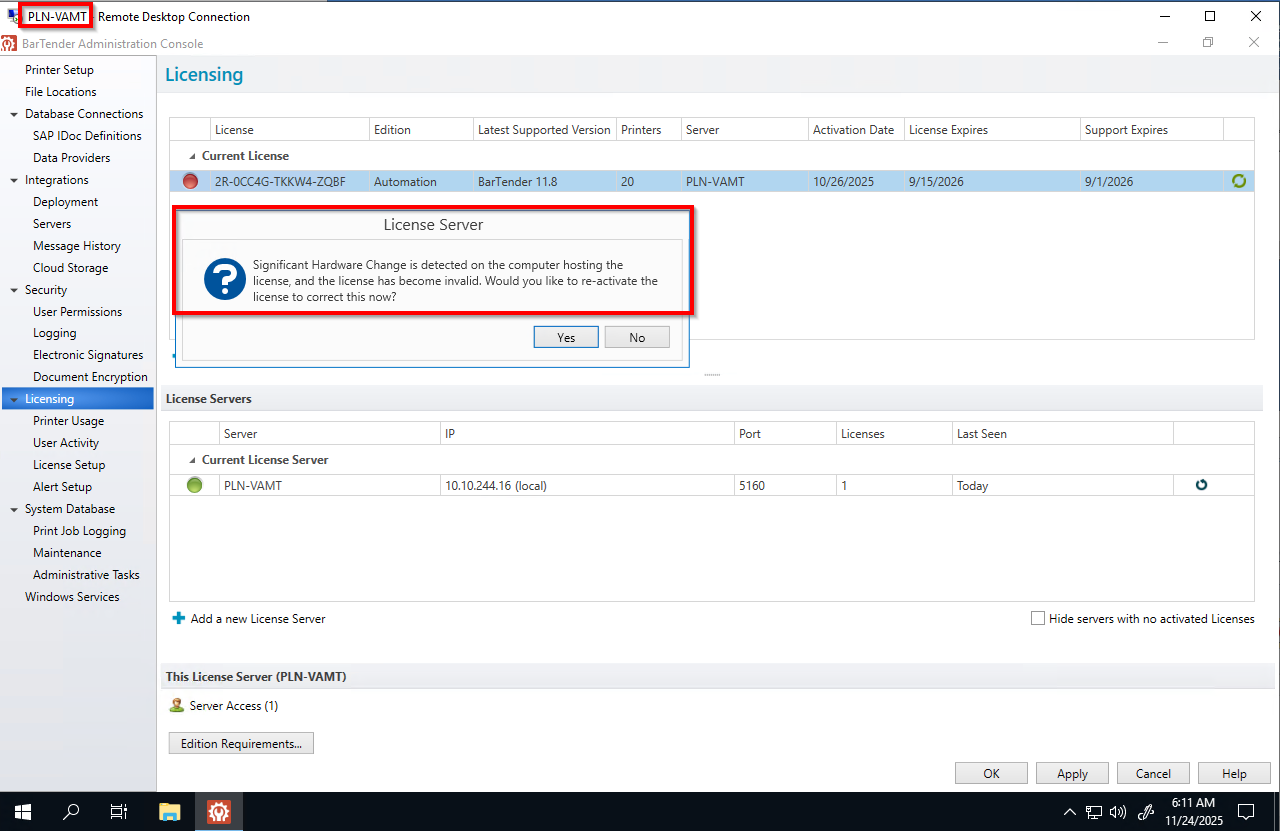
After clicking Yes 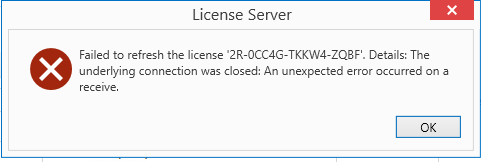
Tried to reactivate the BarTender license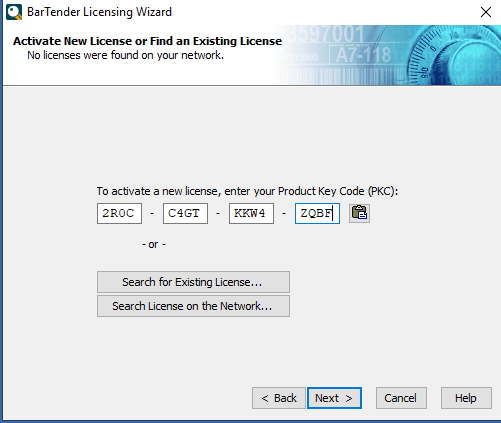
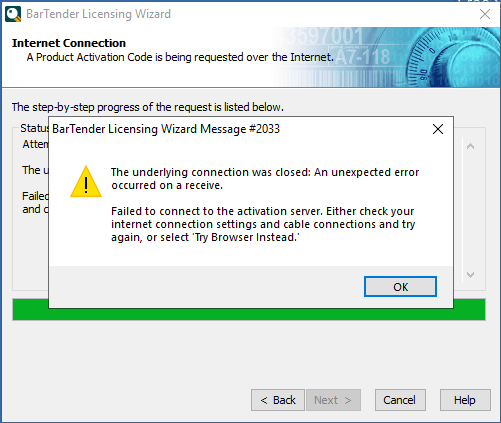
Tried via Browser option on server it fails. ** Copy and Paste Primary Site in your PC browser **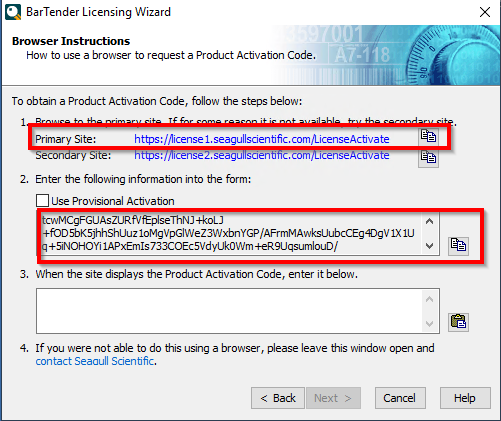
Need to use the Product Key Code: W1TD-6KBD-H177-Z9XK to reactivate the license: 2R-0CC4G-TKKW4-ZQBF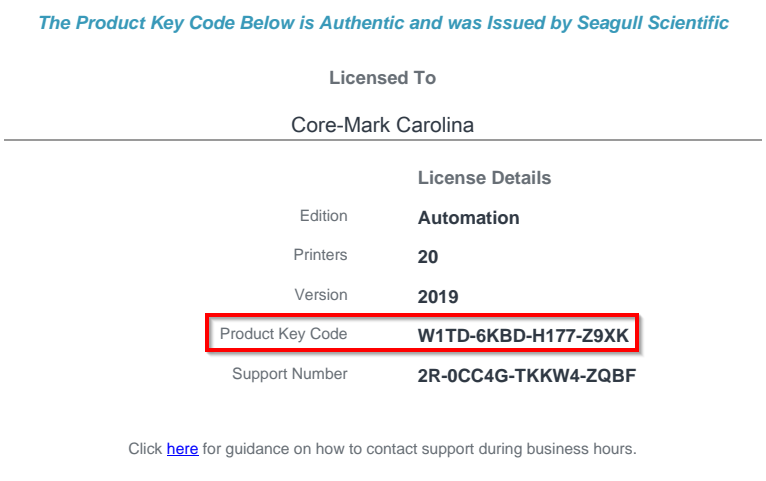
Licensing Server now shows valid activated license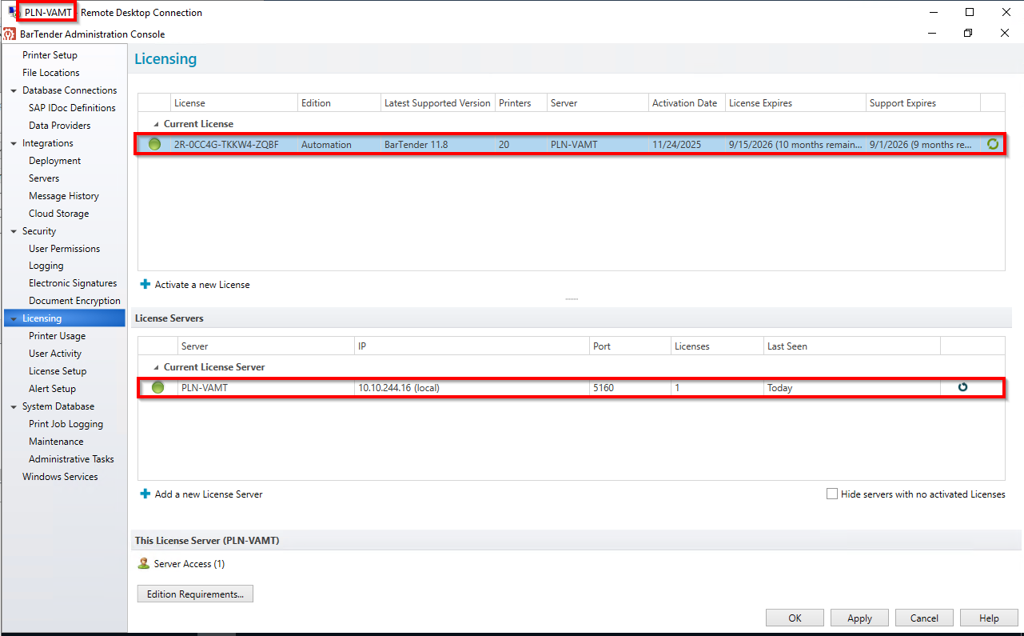
Was this article helpful?
That’s Great!
Thank you for your feedback
Sorry! We couldn't be helpful
Thank you for your feedback
Feedback sent
We appreciate your effort and will try to fix the article