Step 1: Open Settings (Win + I), then go to Apps > Installed apps.
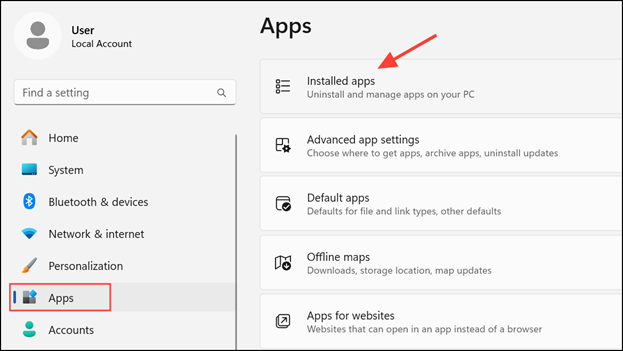
Step 2: Scroll down to find Outlook (New). Click on it, then select Advanced options.
Step 3: In the Advanced options menu, click Reset. Confirm the reset when prompted. This process removes cached data and restores default app settings.
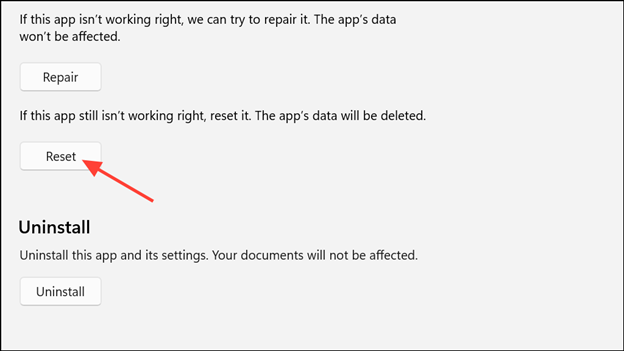
Step 4: Once the reset completes, reopen the New Outlook app. Most users find this resolves persistent launch issues caused by corrupted files or settings.
Was this article helpful?
That’s Great!
Thank you for your feedback
Sorry! We couldn't be helpful
Thank you for your feedback
Feedback sent
We appreciate your effort and will try to fix the article